Color

for this assignment, I needed to create a picture that used color to make it an interesting photo. I’ve taken pictures of my mom’s plant lab before, but I decided to add a contrasting plastic plant to be the focus of the photo. I love how the pink and lime green stand out in the earthy tones around it. I only changed vibrance and levels. This is a plastic solar plant that wiggles. It is cute.

Product Photography

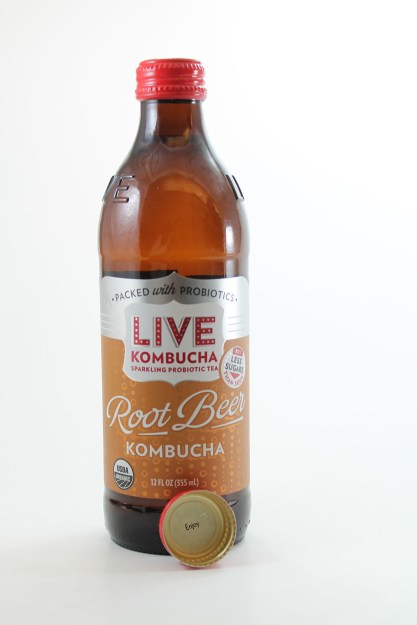
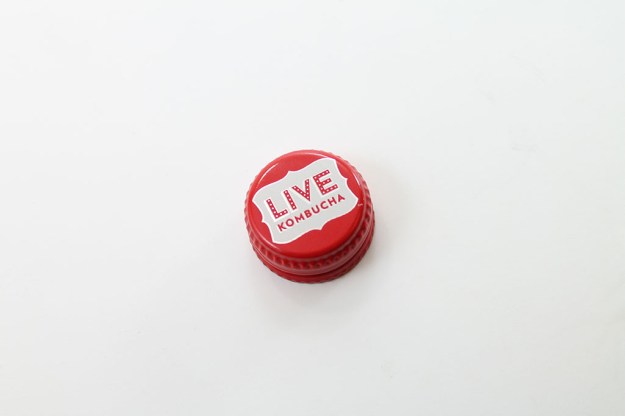
I used a mini light studio to take pictures of various objects and products. These types of photos don’t require too much editing, besides maybe the background. The first photo features my favorite drink, Kombucha (root beer flavor ONLY). I regret not spraying it with water, but the idea still comes across. The second photo is just the cap to the bottle. This may seem boring, but the caps are important to me! Each one has a phrase on the inside of the cap, and I have a huge collection of them. Some phrases are dumb, but some are funny or sweet. Anyway…

More Photo Editing…

The technique I was dying to try was adding a vintage edit to a photo. I used my dad’s giant calculator he uses for his accounting. To set the scene, i added his “fraud investigation” mousepad next to it, and his stacks of books and papers in the back. Luckily for me, there was already some numbers put in, and a receipt. I took the picture and imported it into photoshop. I used the curve’s adjustments to increase the reds, decrease the blues, and add green shadow and highlights. This is the perfect recipe for a vintage photo.

Black and White

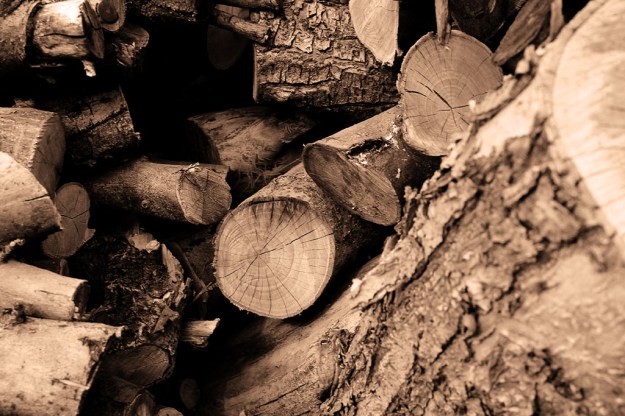
One of the most important thing in taking a black and white photo is creating a photo interesting enough to lose the color. A great way to keep an artistic look is textures, which is why I used wood as my subject. The big apple tree that fell down on my grandparents garden was very old, and so an interesting eye-catcher in my photo is the rings in the wood, along with the bark texture on the outside. I added a black and white filter in photoshop and created a more orange hue to add to the rustic vibe I was going for.

Landscape

For this assignment, I had to take a landscape photo. A landscape must include eye-pleasing visual, and are mostly far away shots. I took a picture of the temple in bountiful. Then I brought it into photoshop for some tweaking. I didn’t change much. It’s a simple photo taken in a simple neighborhood. Jealous of those houses! Sorry it was much crisper in photoshop, something must be up.

Another contest

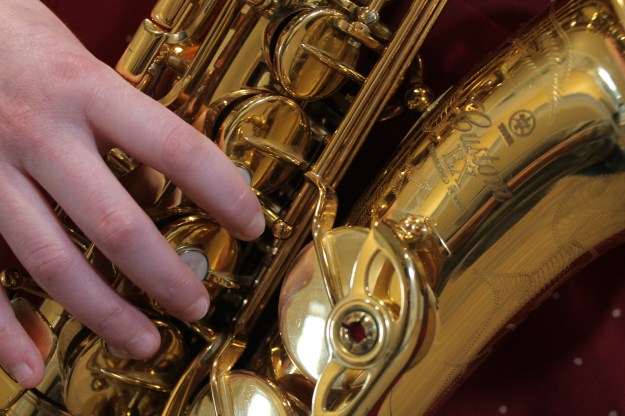
Yo, it’s me Liz. I submitted one of my photo’s to Guru Shots. I knew which one I wanted to do for two reasons. One, it was shiny and I love taking pictures of shiny things. Two, I loved the background and the overall feel that the picture gives. I have used this picture in the past for other assignments, but I love it too much to let it stay in the past.

Submitting my photo was easy. I logged into that website, and uploaded a photo to use for the Rookie challenge, since I am a rookie apparently. It happened almost automatically. I recommend this website to anyone who is looking for a little competition and fun.

MACRO

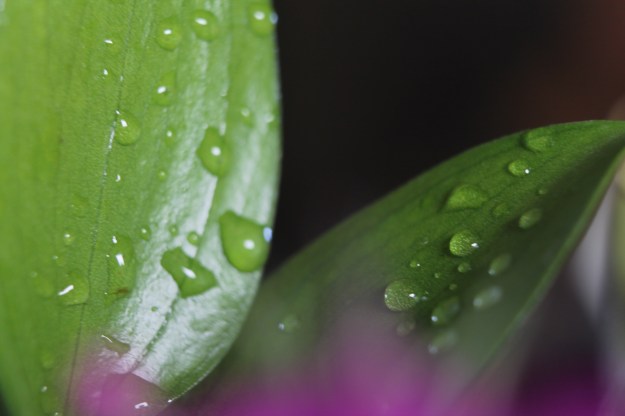
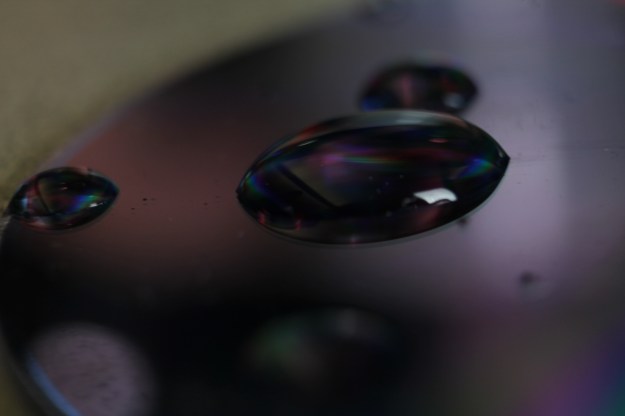
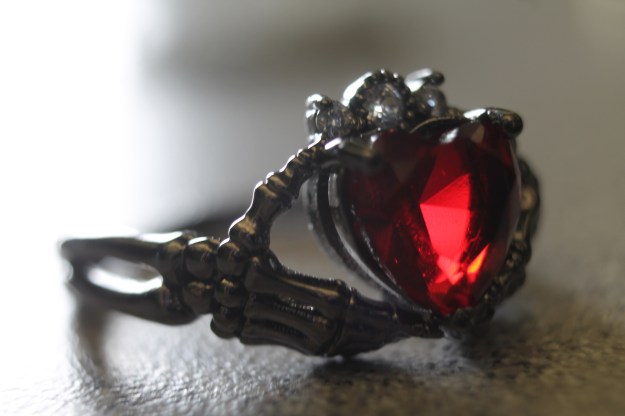
Today I zoomed into the world of Macro. Using a Macro tube, I took pictures of regular every-day items and turned them into something unique and interesting. I have included in this post some of my favorites including water droplets, flowers, and jewelry.

Animated Logo

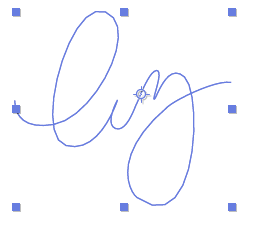
I use the same signature on all of my digital drawings. It’s simple and plain, so using Adobe After Effects, I tried to give it a little pizzazz.

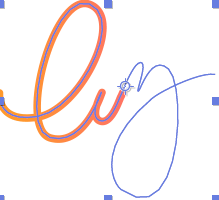
The first thing I did was import a photo of my hand-drawn signature, and trace it with the pen tool.

Then I increased the stroke and created a “trim path” effect, starting the lines at 0% and ending at 100%. Doing this makes the travelling line seem like a real-time signature being written. I used this method (with a little different technique) to move the dot along and create a stretch effect.

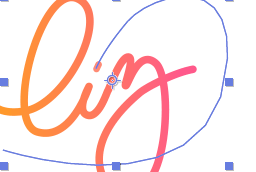
It still could be better… so I added a gradient effect with my two favorite colors, with the two color points at opposite sides of the image. And BAM, my animated logo was born.

VOGUE MAGAZINE COVER

You would probably think I landed the cover of Vogue’s March edition, but this was just a fun project I did in my free time. Since I worked pretty hard on this in Photoshop and InDesign, I will share my process with you.

After taking this lovely picture of myself outside, I took it into Photoshop and made some edits. First, I duplicated the layer and added some adjustment layers such as Photo Filter, Vibrance, Levels, Curves, and Color Balance. These filters were able to eliminate the green hues and give it some pink and orange hues instead.

I duplicated another layer and used a Blur effect, and then created a Mask and inverted it. I brought back the blur only to areas on my face, to smooth out my skin. I added another Levels Adjustment Layer and brought the brightness way up. Then I created another Mask, inverted it, and brought back only a slight amount of that brightness to my face, eyes, and hair. Since I was facing away from the sun in the picture, and I did not use any reflectors, This edit helped the photo look like there was light facing me, without the downside of harsh shadows.

The last edit I made to the photo was a Vibrance Adjustment Layer (Masked and inverted of course) where I brought out the nice blue color in the sky that had been taken out with my orange and pink hues. I did not want to eliminate the warm colors, but adding a little Vibrance to the sky helped with the blue theme.

After editing the picture in Photoshop, I then had to create text in InDesign to create that magazine cover look. Obviously I went with Vogue. It was fairly easy to create the main logo at the top. I searched up Vogue’s font and downloaded it for free. I made the logo the exact same color as my nails by using the Color Drop tool on them and matching the CMYK percentages.

The hard part was thinking of headlines and finding a good font that matched the general type on most Vogue magazine covers and matching the leading on all of it. After getting past that, the rest was easy. I simply dragged my designs from InDesign and into Photoshop.

Viola.

masks and levitation

This was a fun and easy assignment. To create the illusion that someone is floating, first you must take two photos. It is necessary for your camera to be stable; a tripod is strongly recommended. What I did was first take a picture of my mom sitting on a chair:

Then I took another picture of just the background, no mom and no chair:

I then created a mask, and inverted it. Then i painted over the chair to get rid of it. easy.

I have no idea why its blurry here, sorry.

Design a site like this with WordPress.com
Get started